The easiest way to add MLS search, maps and properties to a Bolt website

Bolt IDX Plugin Adds MLS Search & Listings to Your Bolt Website

Yes - adding MLS property search, listings, maps and lead capture to a Bolt real estate website is easy with Buying Buddy. You don't touch code: paste one line per step and Bolt's AI adds everything for you. Under the hood it installs as the official @buyingbuddy/react package, so it runs as native components in the React app Bolt builds.

Get A Free 30-Day Trial!

Your AI installs it

Paste one line and Bolt's AI adds the package and provider for you.

Drop-in Components

Render MLS properties anywhere across your Bolt app's pages.

On Your Own Domain

Your pages and brand stay yours - no iframes and no lock-in.

Give your Bolt real estate app serious MLS authority

Add IDX to your Bolt website.

Adding the full MLS to your Bolt real estate site is simple - MLS search, property listings, interactive maps and lead capture, all displayed on your own pages.

Because Bolt builds a React app, Buying Buddy installs as our official React package and runs as native components - not an iframe or an add-on.

Bolt's AI can do the whole install from our AI prompts - see Install in Bolt with AI.

Bolt logo

Discover how

Real estate leads viewing a Bolt real estate website with IDX MLS search.
AI-Installed
No coding needed
Map Searching
Lead Capture & CRM
Add the official Buying Buddy React package to your Bolt app and render MLS search, listings and capture as components anywhere in your real estate website.

Create Your Real Estate Showcase

Use Buying Buddy widget components to display MLS search forms, listings, canned search results, an interactive map, capture forms and a lot more.
  • Add a quick-search or full-search to your pages.
  • Search with a radius or just close-by.
  • Interactive dynamic map search tool with polygon shape search is built-in.
  • Use various layouts such as a gallery / grid, a list view or a map to show properties.
  • Create hotsheet landing page widgets that will display any properties:
    • Your own listings, listings from your office, or listings from your team.
    • Any available listing status including for-sale / active, pending, sold, coming soon, and even rental.
    • Any MLS field such as areas like city, zip, county, or type / subtype of property or any other field.
    • Your private, off-market pocket listings can be added and displayed too.
  • Status banners highlight listings that are recently listed, have a reduced price, or have an open-house.
Learn More
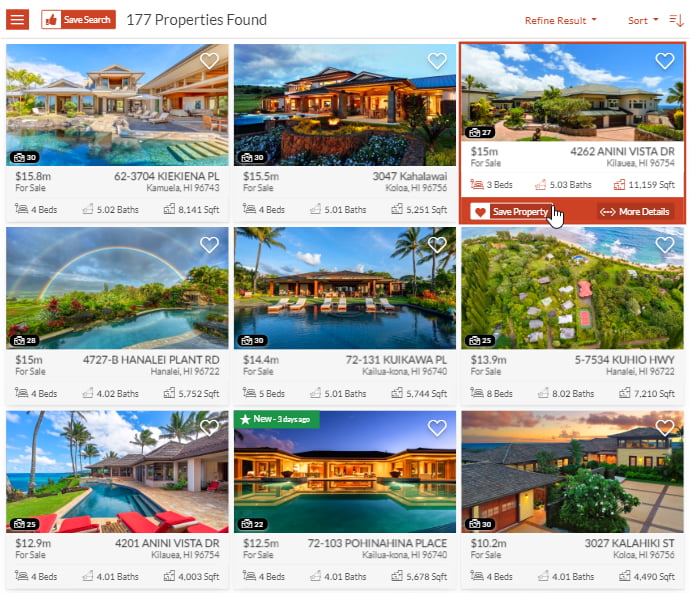
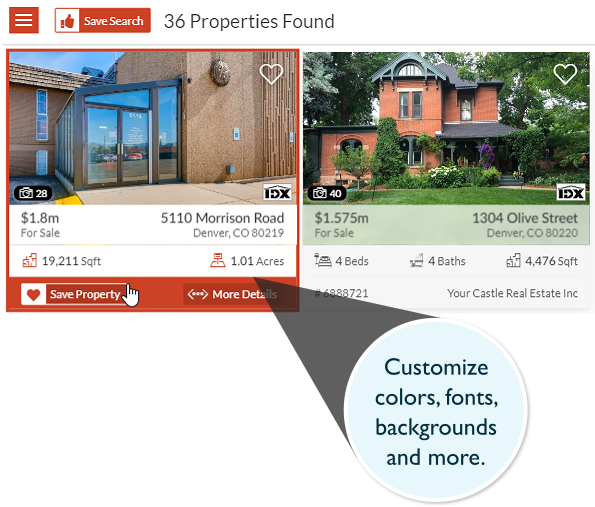
MLS property listings displayed in a grid layout inside a Bolt React app.

Works the Way Bolt Does

Your pages, routes and metadata stay under your control with React's own routing. Buying Buddy widgets add the live MLS data, search and lead capture.

Buying Buddy widgets load live MLS content in the browser once your site runs, so they fit naturally into how Bolt builds and navigates your pages.

You build SEO-friendly pages in Bolt as usual, then drop in widgets for MLS search, listings and capture. Four foundation routes - results, details, market reports and communities - power the full search-to-listing flow.

To see the widgets in the Bolt editor preview while you build, open your preview in a separate tab, click "Connect to Project" if Bolt asks, and add that address in your Buying Buddy dashboard. It stays the same for your project, so you add it just once.

Learn More
Bolt React pages and routing you control, with Buying Buddy widgets adding live MLS data.

Set It Up With AI Prompts

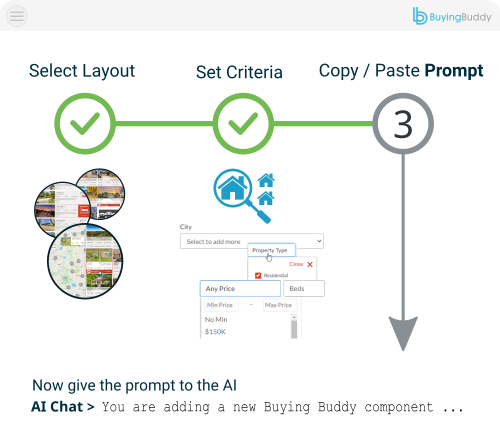
You don't have to edit code. Paste our ready-made prompts and Bolt's AI adds Buying Buddy for you, one prompt per step.

Open our Bolt AI prompts, copy the prompt for each step, and paste it into the Bolt chat. It installs Buying Buddy, creates your foundation pages and adds the MLS disclaimer - then you add your Bolt preview domain in your dashboard to see the widgets while you build.

Prefer to install it by hand? The manual steps are in the FAQ below. Widgets are mobile- and container-responsive, so they fit any Bolt layout.

Learn More
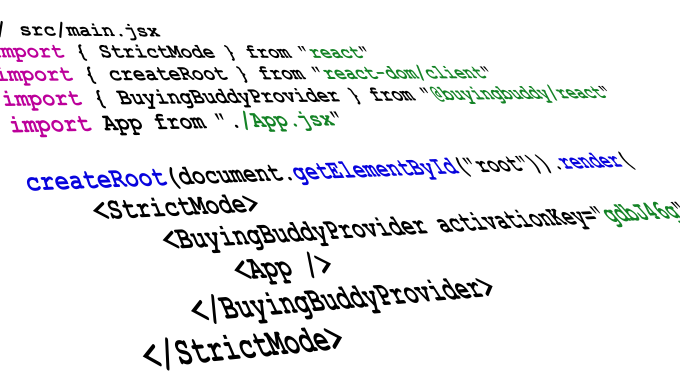
Adding Buying Buddy to a Bolt app: install the package, add the provider, add widgets.

More Properties Will Give You More Credibility

Displaying curated MLS properties across your Bolt app is simple - configure a widget with a type and a filter.

Use the Widget Wizards in your Buying Buddy dashboard to define niche displays and hotsheet landing pages. The wizard guides you to specify what to show and gives you the configuration to use.

First, decide the widget (map, list, gallery).
Then pick the MLS criteria that define the properties to show, and the wizard turns them into a ready-to-use prompt and widget.

Add it to any page to show your curated displays of properties.

Learn More
Configuring a Buying Buddy widget in Bolt with type and filter to display MLS properties.

Style and Theme

Use Buying Buddy Widget Themes to seamlessly blend IDX widget content with your Bolt app's design and brand.
  • The library holds a large collection of Themes.
  • Or, create a Theme, using the Theme editor.
  • Or, if you wish, you can also edit CSS if needed.
See Demo
Styling Buying Buddy IDX widgets to match a Bolt website theme.

Bolt IDX Plugin - Common Questions

Bolt's AI can do the whole install for you from our Bolt AI prompts. You paste one line for each step into the Bolt chat and it makes the changes - no coding needed.

Prefer to install it by hand? The manual steps are in the next question.

Yes. If you would rather not use the AI prompt, you can install the package yourself:

  1. Install @buyingbuddy/react and wrap your app once with <BuyingBuddyProvider activationKey="your-key">.
  2. Add <BuyingBuddyWidget> components - a search form, your foundation pages (results, details, market report, communities), and the disclaimer.
  3. To see the widgets while you build, add your Bolt preview domain in Website Options in your dashboard.

The widgets render in the browser and hook into React's component lifecycle, so they initialize correctly in single-page apps and with client-side navigation.

No. Paste our prompt into the Bolt chat and it installs the package, adds the provider and drops in the widgets for you.

Yes - add your Bolt preview domain in Website Options in your Buying Buddy dashboard. To find it, click the small "Open preview in a separate tab" icon at the top of the Bolt preview panel. If the new tab asks you to connect it to your project, click "Connect to Project". Then copy the address from the address bar - it ends in webcontainer-api.io. The address stays the same for your project, so you only add it once.

No. There are no API keys to obtain and nothing to host. Buying Buddy receives the IDX feed directly from the MLS and the widgets display it in your Bolt app. An IDX license and MLS approval are required to show live data - a standard process we help you with - and until approval, widgets show our Demonstration MLS.


Or, call: 800.205.0317